Sign documents with the Smart-ID App and OK!Sign in Belgium

What is Smart-ID?
Smart ID is a free app that allows you to easily and securely prove your identity and sign documents.Smart-ID is a product of SK ID Solutions, a certified European Trust Service Provider and extremely popular in Estonia, Latvia and Lithuania.
Recently (January 2026), Smart-ID is also available in Belgium.
Focus on security and privacy
- Smart ID only works if you use your smartphone (or tablet) and your personal Smart ID code.
- Smart ID meets the requirements of the European AML & KYC Directive
- Complies with PSD2 & GDPR requirements
- Applies strict measures for maximum protection against fraud
- Advanced cryptographic solution for the PKI (public key infrastructure)
Legal and secure
- Thanks to the Common Criteria certification, a device with Smart ID also becomes a Qualified Electronic Signature Creation Device (QSCD).
- Electronic signatures generated via Smart ID are of the highest level (eIDAS qualified signature) and are legally recognized and binding in all EU countries.
How do I activate Smart-ID?
To activate Smart-ID, you must:- download the Smart-ID app on your smartphone or tablet via the App Store or Google Play
- link your identity details to your Smart-ID account using your eID Card.
Follow the step-by-step plan on Smart-ID.be (see section: Download the FREE Smart-ID app).
How to get documents signed with the Smart-ID app?
Activate the use of Smart-ID in the OK!Sign Editor
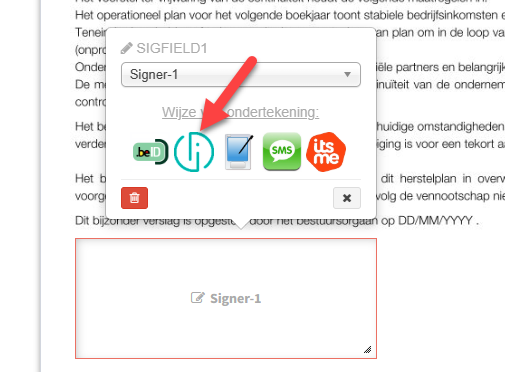
In your OK!Sign account you can define that the signer may (or must) sign with the Smart-ID App.When you place a signature field on a page in the editor, signing with Smart-ID is activated by default (like the other signing options):
During the signing process...
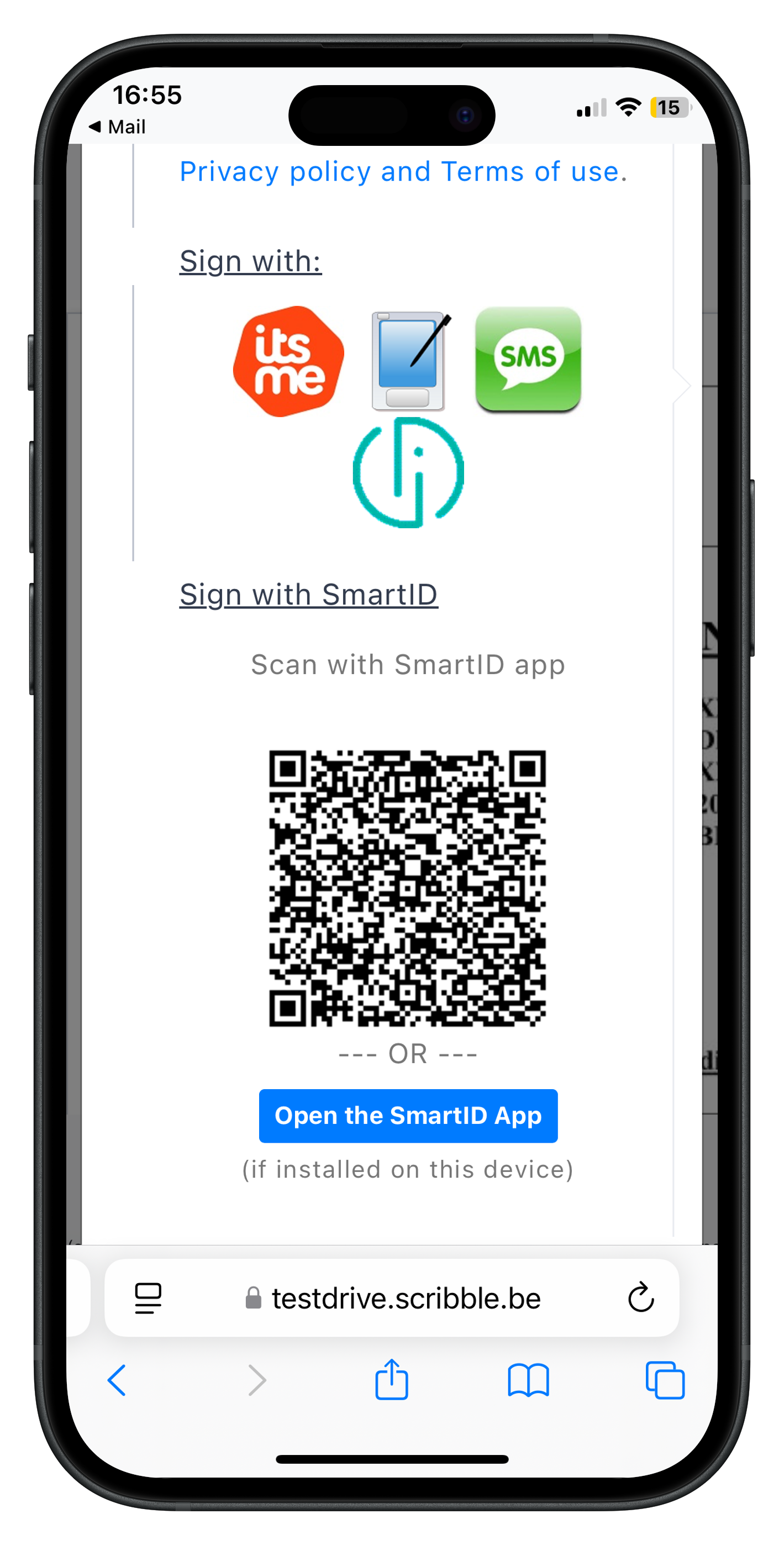
The signer clicks on the Smart-ID logo. A QR code appears the signer can scan with the Smart-ID App.If the document is signed on a smartphone or tablet with the SmartID app installed, the Smart-ID App can be opened immediately without scanning the QR code.
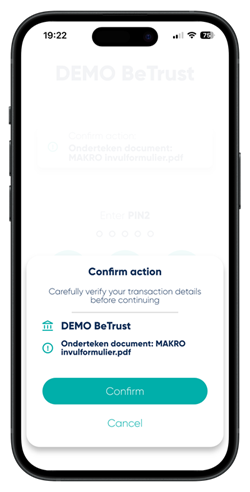
First, the signer confirms (or cancels) he wants to sign the proposed document in the Smart-ID app.
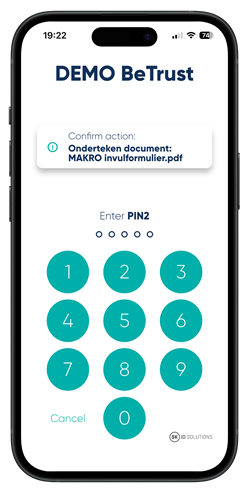
By entering the PIN code, the document is signed.
A confirmation screen is shown the document has been signed.
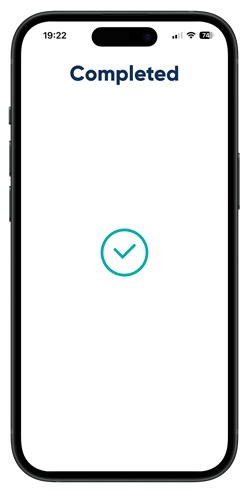
The PDF document is now signed with a qualified electronic signature, the highest possible standard in the European Union according the eIDAS regulation.
What does an Smart-ID signature look like in a PDF?
Because the Smart-ID signature is a qualified X.509 signature, it is added at the end of the document on a separate page (see screenshot).
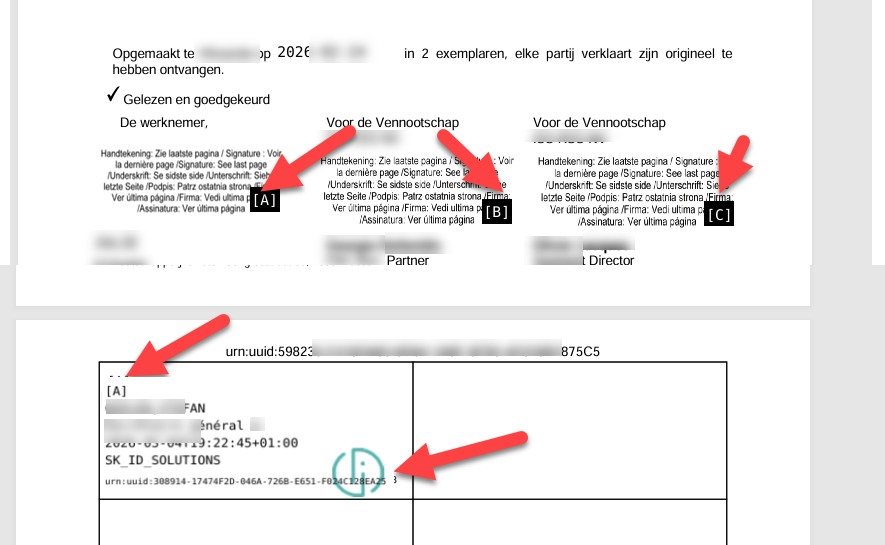
At the location where you placed signature fields in the OKSign Editor (or via the API), a message appears indicating that the official signature can be found on the last page of the signed document.
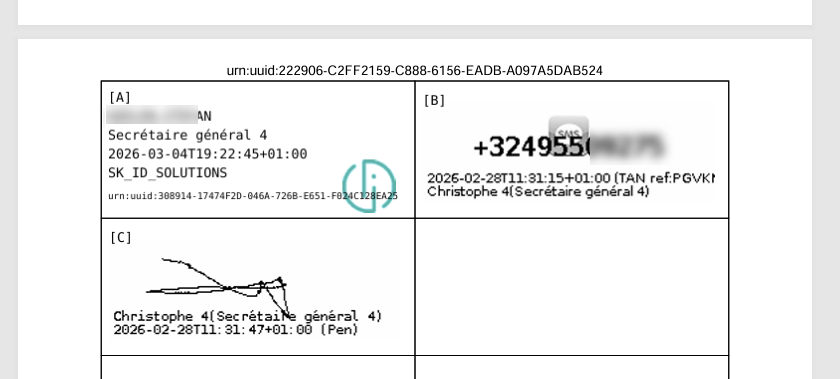
For each mention of ‘signature see last page’, a reference (A, B, C, …) is added, and this reference is repeated in the signature on the last page so that you can more easily see which signature corresponds to which position(s) in the document.
The logo of the signing method (Smart-ID logo) is shown with each signature on the last page.
After the first X.509 signature, all subsequent signatures will always be placed on the last page, even if the signing is done with ‘Pen’ (signature on a touchscreen) or via TAN/SMS.
How to verify who signed a PDF document with the Smart-ID service?
In Acrobat Reader, you can consult the certificate details at any time (see screenshot below).
Proceed as follows:
- Open the signed PDF document in Acrobat Reader and click on the signature on the last page.
- A popup appears: click on Signature Properties.
- Click on Show Signer's Certificate.
- Click on Details and then on Subject to view the signer’s details (name, national register number).
Also note that in screenshot 1, the message “Signed and all signatures are valid” appears at the top, and in screenshot 2, the message “The document has not been modified since this signature was applied” is shown.
This indicates that the signature is legally valid and that the document has not been altered after signing.
The signature is also provided with an embedded timestamp, which gives the signature a fixed and verifiable date.
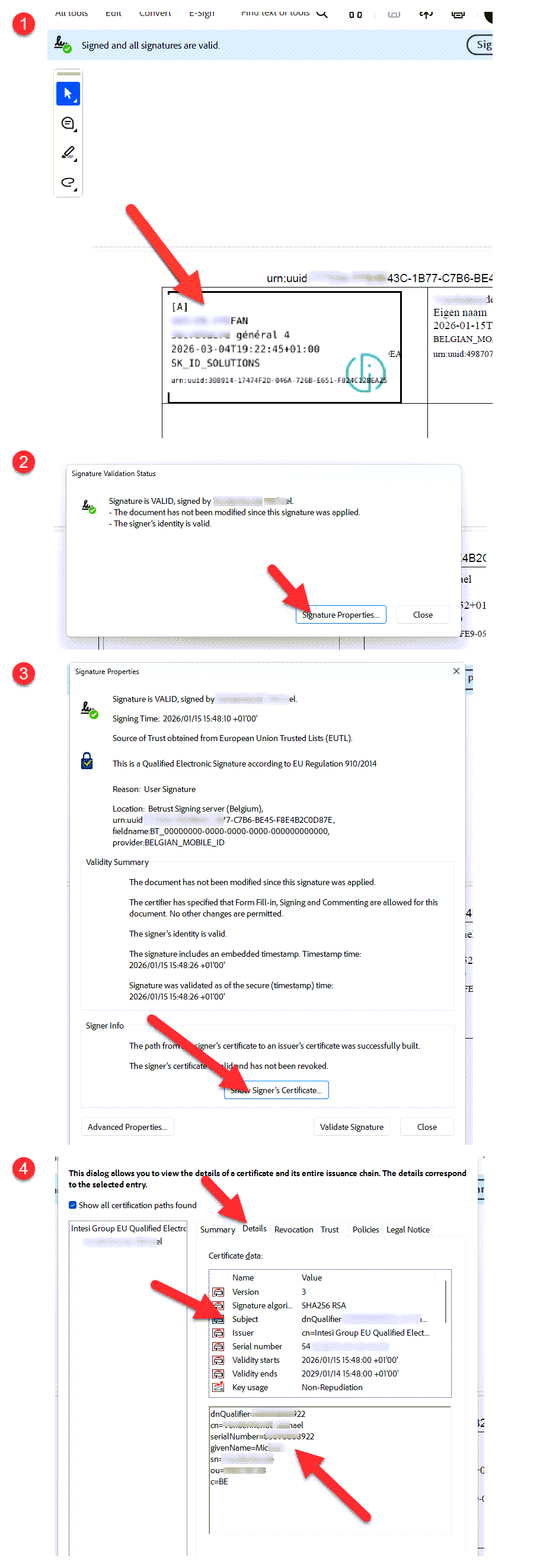
As the certificate details are embedded in the PDF document, anyone can easily verify who signed the document. The signature 'travels' within the document and can be verified by anyone at any moment by opening the PDF document in Acrobat Reader.
Back to Blog